· Tools · 4 min read
Getting Started with Playwright
A student's intro to Playwright, the browser automation library — what it's good for, how to set it up in Python, and example code for scraping, form filling, screenshots and testing.
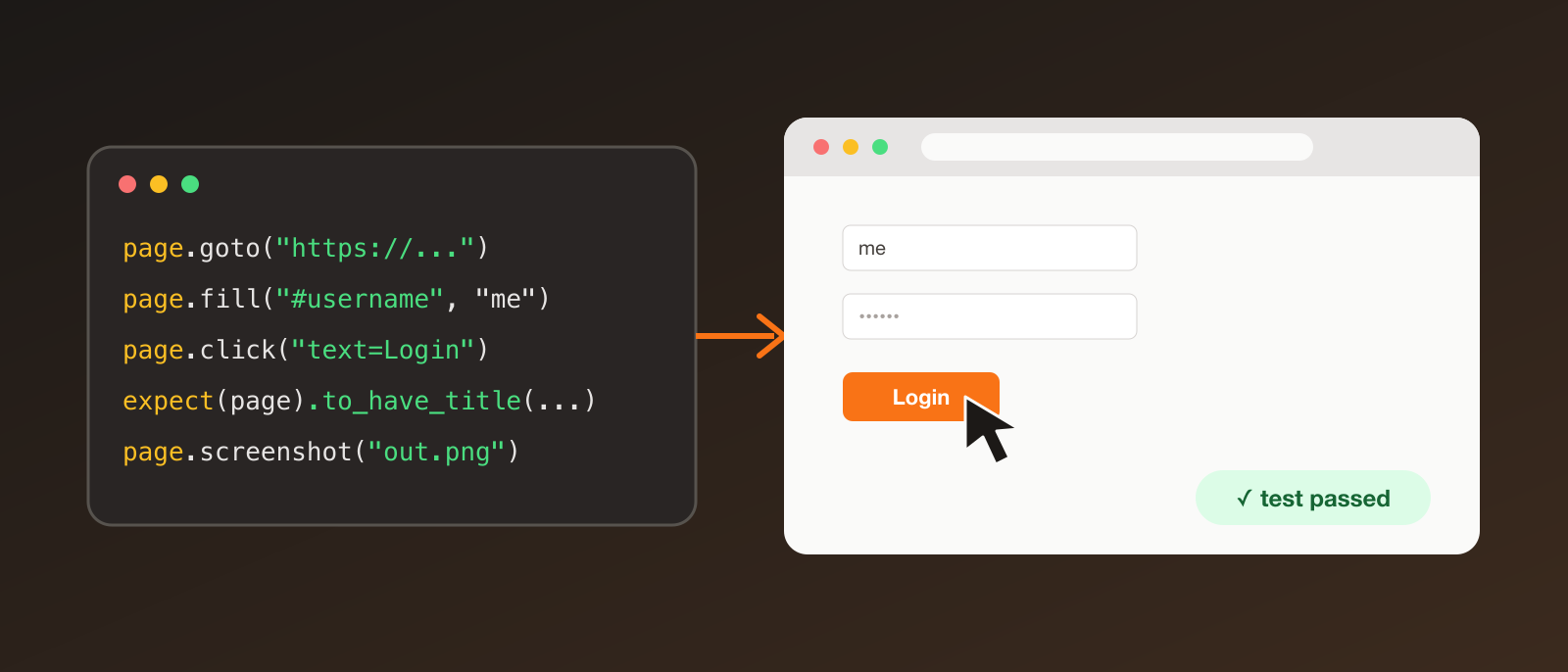
There’s a point in most projects where I end up doing the same thing in a browser again and again: log in, click through a few pages, copy some numbers, check that something still works. Doing it by hand gets old quickly, and tools like requests can’t help when a page is built with JavaScript.
Playwright is the tool I reach for now. It controls a real browser from code, so anything you can do by clicking, you can automate.
What is Playwright?
Playwright is an open-source browser automation library from Microsoft. It drives Chromium, Firefox and WebKit (Safari’s engine) with one API, and is available for Python, JavaScript/TypeScript, Java and .NET. I’ll use Python here.
Why I like it:
- Auto-waiting — it waits for elements to be ready before clicking or typing, so you write far fewer fragile
sleep()calls. - Real browsers — JavaScript-heavy sites work exactly like they do for a person.
- Cross-browser — run the same script on Chromium, Firefox and WebKit.
- Headless or headed — run invisibly for speed, or watch the browser while debugging.
- Codegen — it can record your clicks and write the script for you.
- Great tooling — screenshots, video, tracing and a built-in test runner integration.
Use cases
- End-to-end testing — check that signup, login or checkout flows still work after each change.
- Web scraping — collect data from pages that load content with JavaScript.
- Automating repetitive tasks — filling forms, downloading reports, routine admin work.
- Screenshots and PDFs — capture pages for documentation or monitoring.
- Monitoring — check that a page is up and shows what it should.
- Feeding LLM agents — give an AI agent a real browser to work with.
One note: only automate sites you’re allowed to. Check a site’s terms and robots.txt before scraping, and be gentle with request rates.
Setup
You’ll need Python 3.9 or newer.
python -m venv .venv
source .venv/bin/activate   # on Windows: .venv\Scripts\activate
pip install playwright
playwright install
The last command downloads the browser binaries Playwright controls. This is easy to forget, and without it you’ll get an error about a missing executable.
Your first script
from playwright.sync_api import sync_playwright

with sync_playwright() as p:
    browser = p.chromium.launch(headless=False)   # headless=True runs without a window
    page = browser.new_page()
    page.goto("https://playwright.dev")
    print(page.title())
    page.screenshot(path="home.png")
    browser.close()
Run it with python first.py. A browser opens, loads the page, prints the title and saves a screenshot.
Example 1: scraping data
quotes.toscrape.com is a site made for practising scraping.
from playwright.sync_api import sync_playwright

with sync_playwright() as p:
    browser = p.chromium.launch()
    page = browser.new_page()
    page.goto("https://quotes.toscrape.com")

    for quote in page.locator(".quote").all():
        text = quote.locator(".text").inner_text()
        author = quote.locator(".author").inner_text()
        print(f"{author}: {text}")

    browser.close()
Example 2: logging in and filling a form
The same practice site has a login page that accepts any username and password.
from playwright.sync_api import sync_playwright

with sync_playwright() as p:
    browser = p.chromium.launch()
    page = browser.new_page()
    page.goto("https://quotes.toscrape.com/login")

    page.fill("#username", "student")
    page.fill("#password", "secret")
    page.click("input[type=submit]")

    page.wait_for_selector("text=Logout")
    print("Logged in!")

    browser.close()
Example 3: a small automated test
For testing, install the pytest plugin, which handles the browser for you:
pip install pytest-playwright
playwright install
Create test_site.py:
import re
from playwright.sync_api import Page, expect

def test_homepage_title(page: Page):
    page.goto("https://playwright.dev")
    expect(page).to_have_title(re.compile("Playwright"))

def test_get_started_link(page: Page):
    page.goto("https://playwright.dev")
    page.get_by_role("link", name="Get started").click()
    expect(page.get_by_role("heading", name="Installation")).to_be_visible()
Run it:
pytest                 # headless
pytest --headed        # watch it happen
pytest --browser firefox --browser webkit
The expect(...) assertions retry automatically until they pass or time out, which is what makes the tests much less flaky.
Let Playwright write the code for you
playwright codegen https://quotes.toscrape.comThis opens a browser and an inspector window. Click around the page and Playwright writes the matching code as you go. I usually use it to find good selectors and then clean the result up by hand.
Tips
- Prefer user-facing locators like
get_by_role,get_by_textandget_by_labelover long CSS selectors. They survive page redesigns better. - Use
headless=Falseandslow_mo=500inlaunch()while debugging. - When something fails, a trace helps a lot. Check the docs for
--tracing onwith pytest and the trace viewer. - Reuse a logged-in session by saving the browser’s storage state instead of logging in on every run.
Where to go next
- Docs: playwright.dev/python
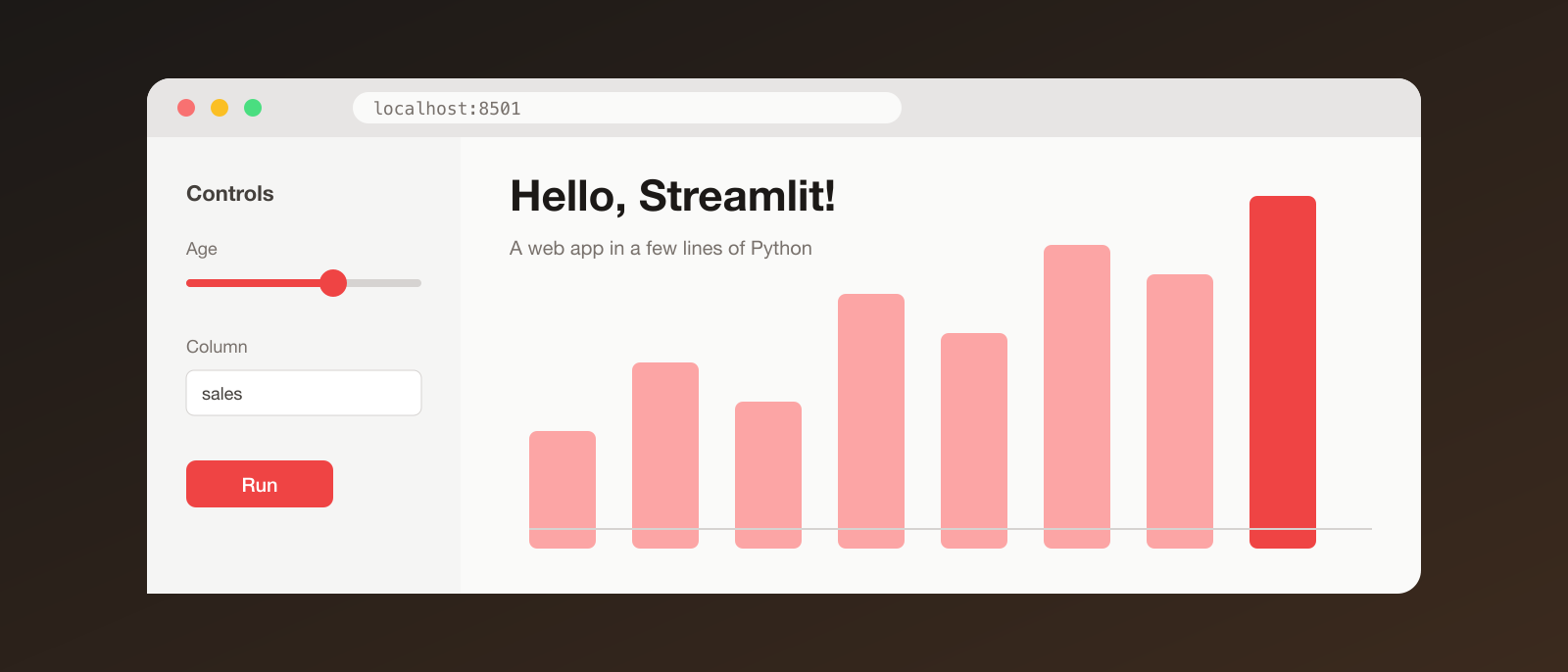
- Combine it with Streamlit to build a small dashboard on top of your scraped data.
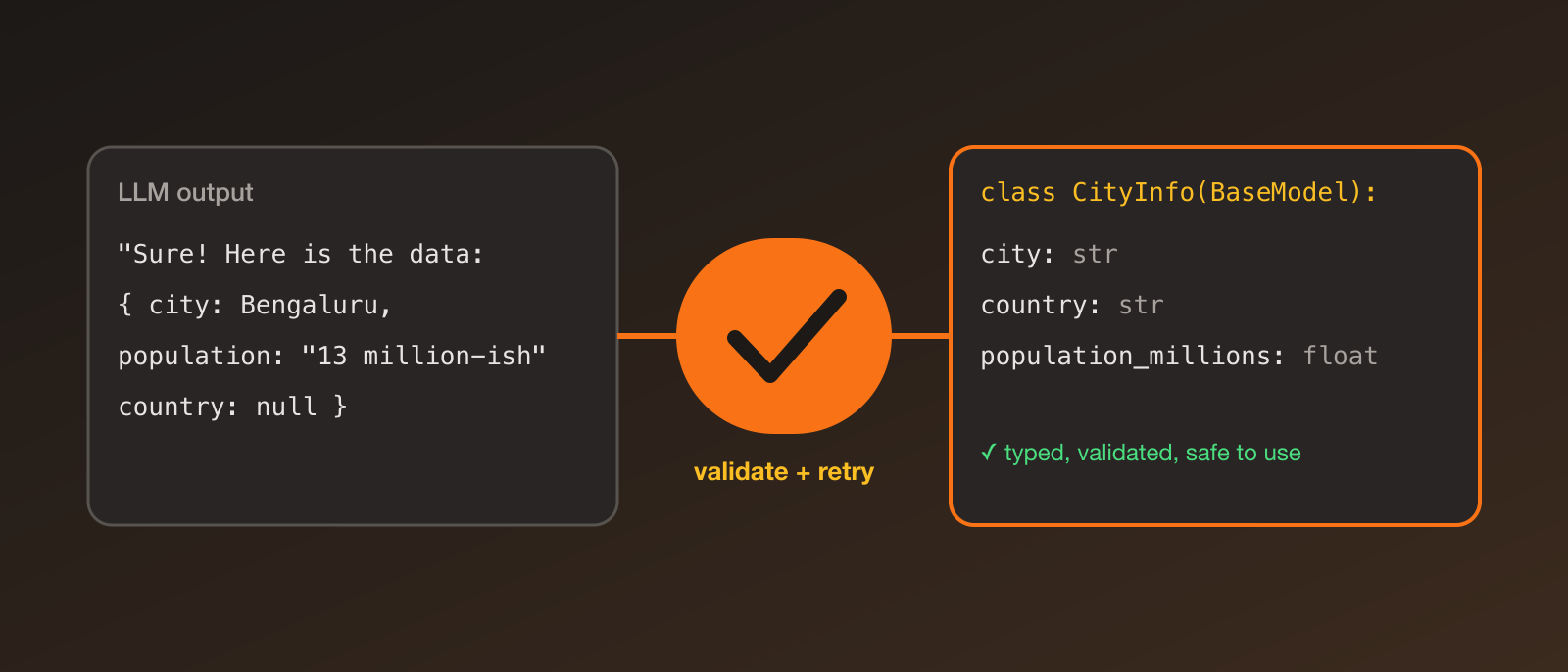
- Validate the data you scrape with Pydantic.
If you ever catch yourself repeating the same clicks in a browser, that’s a good sign it can be a Playwright script.