· Tools · 3 min read
Getting Started with Streamlit
A student's intro to Streamlit — the Python library that turns a plain script into a shareable web app, why it's great for rapid prototyping, and how to install it and build your first app.
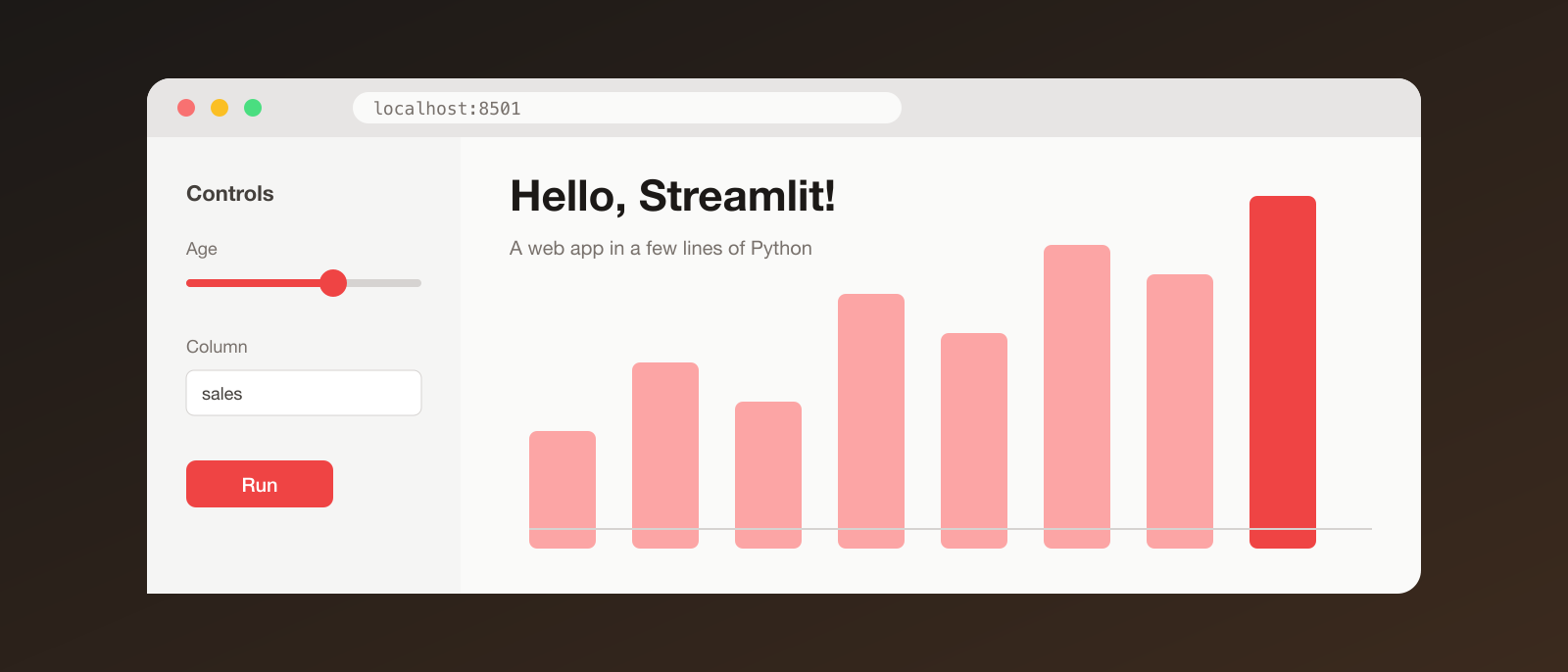
When I first started building small data and ML projects, I hit the same wall every time: the code worked, but the only way to show it to anyone was a terminal window or a Jupyter notebook. Building a proper web UI meant learning Flask, HTML, CSS and some JavaScript — way too much just to let someone type a prompt or move a slider.
Then I found Streamlit, and it made that problem mostly disappear.
What is Streamlit?
Streamlit is an open-source Python library that turns a regular Python script into an interactive web app. You don’t write HTML, CSS or JavaScript. You write Python, call functions like st.title() or st.slider(), and Streamlit renders the UI in your browser.
Why I like it
- Rapid prototyping — you can go from an idea to a working demo in minutes. For a student juggling assignments and side projects, that speed matters.
- Pure Python — if you can write a script, you can build the app. No frontend knowledge needed.
- Live reload — save your file and the app offers to rerun, so you see changes instantly.
- Built-in widgets — sliders, buttons, file uploaders, chat inputs, charts and tables are one line each.
- Works with the ecosystem — pandas, NumPy, Matplotlib, Plotly, scikit-learn and LLM libraries all plug in naturally.
- Easy to share — push to GitHub and deploy for free on Streamlit Community Cloud.
It’s not meant to replace a full production web framework. But for demos, dashboards, internal tools and course projects, it’s hard to beat.
Installation
You’ll need Python installed (check python --version). It’s a good habit to use a virtual environment so your projects don’t step on each other.
python -m venv .venv
source .venv/bin/activate   # on Windows: .venv\Scripts\activate
pip install streamlit
Check that it worked:
streamlit helloThis opens a demo app in your browser with a few examples to play with.
Your first app
Create a file called app.py:
import streamlit as st

st.title("Hello, Streamlit!")

name = st.text_input("What's your name?")
age = st.slider("How old are you?", 0, 100, 20)

if name:
    st.write(f"Nice to meet you, {name}. You are {age} years old.")
Run it:
streamlit run app.pyYour browser opens at http://localhost:8501 with a working app. Change the text in your editor, save, and click Rerun to see the update.
How it works (the one idea to remember)
Streamlit reruns your whole script from top to bottom every time the user interacts with a widget. That’s why the code is so simple — there are no callbacks to wire up by default. The flip side is that normal variables reset on every rerun, so to remember things between interactions you use st.session_state:
if "count" not in st.session_state:
    st.session_state.count = 0

if st.button("Click me"):
    st.session_state.count += 1

st.write(f"Clicked {st.session_state.count} times")
When something is slow, like loading a dataset or a model, add @st.cache_data (or @st.cache_resource) so it only runs once.
A quick data example
import pandas as pd
import streamlit as st

st.title("CSV Explorer")

file = st.file_uploader("Upload a CSV", type="csv")
if file:
    df = pd.read_csv(file)
    st.dataframe(df)
    column = st.selectbox("Column to plot", df.select_dtypes("number").columns)
    st.line_chart(df[column])
That’s a working data explorer in about ten lines.
Where to go next
- Read the official docs at docs.streamlit.io.
- Try
st.columns,st.tabsandst.sidebarto lay out your app. - Build a chat interface with
st.chat_inputandst.chat_message. - Deploy it on Streamlit Community Cloud straight from a GitHub repo.
If you’ve got a Python script you’re proud of, wrap it in Streamlit. It takes a few minutes, and having something people can click on is far more convincing than a screenshot.